How to install PEAR, PHPUnit, and XDebug on Mac OS X 10.6 Snow Leopard
I use Mac OS X 10.6 Snow Leopard on my Apple Macbook — my primary web development machine. By default, Mac OS X 10.6 includes PHP 5.3.0 and Apache 2.2.11. Unfortunately, a default Mac OS X 10.6 install does not include more advanced tools for testing and debugging PHP applications. This tutorial demonstrates how to install PEAR, PHPUnit, and XDebug on Mac OS X 10.6 Snow Leopard.
Turn on PHP
After upgrading to Snow Leopard, PHP may be disabled. To activate PHP, you need to load the PHP 5 module in the Apache configuration file. Open /etc/apache2/httpd.conf file with vi or TextMate. Locate this line (line 115 for me):
#LoadModule php5_module libexec/apache2/libphp5.so
Remove the ”#” from the beginning of the line so that it looks like this:
LoadModule php5_module libexec/apache2/libphp5.so
Save httpd.conf. Now restart the Apache web server. Open System Preferences and click on Sharing. Uncheck Web Sharing, then re-check Web Sharing. This restarts the Apache web server and loads the newly activated PHP 5 module. To ensure PHP is working, create a new text file in ~/Sites/ named index.php. This file will have the following contents:
<?php phpinfo(); ?>
When you view http://localhost/~[your_user_name]/index.php in a Web browser, you should see a lot of information about your PHP installation. This means PHP and Apache are now working. If you do not see a lot of information, you need to review the previous steps. At this point, I assume Apache and PHP are working.
Install PEAR and PHPUnit
PHPUnit, a member of the xUnit family of testing frameworks, provides an easy-to-use framework for testing and analyzing your PHP applications. PHPUnit recommends that you install using PEAR. Unfortunately, when I attempted to install PHPUnit using the default PEAR install on Mac OS X 10.6, I was told PEAR was too old and must be upgraded before I could install PHPUnit.
Install PEAR
Instead of upgrading Mac OS X's PEAR install, I install my own copy in /usr/local/. Open /Applications/Utilities/Terminal.app and enter this command:
$ cd /usr/local
Next, we begin the PEAR installation process. Enter this command into the Terminal:
$ curl http://pear.php.net/go-pear | sudo php
Enter your administrator password if prompted and answer any questions that follow. You should be okay if you accept the default answers for each question. When the script finishes, PEAR should be installed in /usr/local/bin/. The PEAR library should be accessible at /usr/local/PEAR/.
Update system PATH
Now we need to add our custom pear install to our system PATH. Create or edit your bash profile in vi (or TextMate):
$ vi ~/.bash_profile
Ensure this file includes the following line of text:
PATH=/usr/local/bin:$PATH
Save the file and restart the Terminal application for this change to take effect. Next, we should verify that pear works. Run this command in the Terminal:
which pear
This command should answer ”/usr/local/bin/pear”.
Update PHP include path
Now we need to tell PHP where our PEAR library is located by adding pear to the PHP include path in the /etc/php.ini file. This file does not exist by default on Mac OS X 10.6. To create this file, run the following command in the Terminal:
$ sudo cp /etc/php.ini.default /etc/php.ini
Next, we need to edit /etc/php.ini file in vi or TextMate and update the PHP include path. Locate the following line in /etc/php.ini:
;include_path = ”/php/includes”
Remove the ”;” from the beginning of the line and add the PEAR library path.
include_path = ”/usr/local/PEAR:/php/includes”
Save /etc/php.ini. Restart the Apache web server by unchecking and rechecking System Preferences > Sharing > Web Sharing. Next, view http://localhost/~[your_user_name]/index.php in a web browser (you created this file earlier). Search for “include_path” and verify the path now includes ”/usr/local/PEAR”. PEAR is now installed.
Install PHPUnit
Next, we install PHPUnit. This is the easy part. Run this command in the Terminal:
$ sudo pear channel-discover pear.phpunit.de
Next, run this command in the Terminal:
$ sudo pear install phpunit/PHPUnit
That’s it. PHPUnit is installed and located at /usr/local/PEAR/PHPUnit/. You can now include PHPUnit in your PHP scripts with this line:
require_once 'PHPUnit/Framework.php';
Install XDebug
XDebug is an advanced debugging and profiling tool for PHP. It provides stack and function traces, memory allocation, profiling, code coverage analysis, and more. Instead of compiling XDebug from source, I will use a pre-compiled PHP extension from ActiveState. Go to this url in a Web browser:
http://aspn.activestate.com/ASPN/Downloads/Komodo/RemoteDebugging
Download the PHP Remote Debugging file for Mac OS X. Unarchive the downloaded file, and you should see a new folder like this:
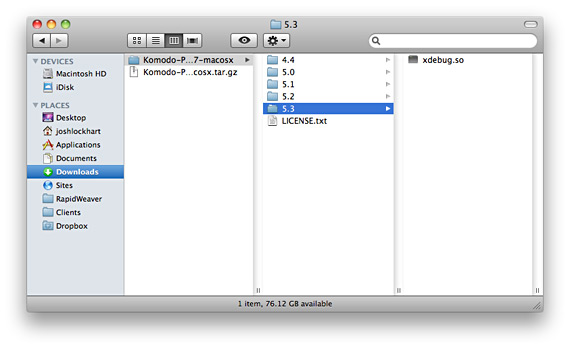
Enter the “5.3” directory and find the file named “xdebug.so”. You need to move this file to the /usr/lib/php/extensions/no-debug-non-zts-20090626 directory. First, open a new Finder window and press Cmd + Shift + G. Enter /usr/lib/php/extensions/no-debug-non-zts-20090626/ into the prompt that appears and press “Go”. This will open the destination directory in the Finder window. Drag xdebug.so into the destination directory. You may be prompted for your administrator password. If the /usr/lib/php/extensions/no-debug-non-zts-20090626/ directory does not exist, locate the /usr/lib/php/extensions/ directory instead. This directory will contain a directory named something similar to no-debug-non-zts-20090626. Place xdebug.so into that directory instead.
Finally, we need to tell PHP to use the xdebug.so extension. Edit /etc/php.ini in vi or Textmate. Append the following lines to the bottom of the file:
	[xdebug]
	zend_extension=/usr/lib/php/extensions/no-debug-non-zts-20090626/xdebug.so
Ensure the path to xdebug.so is correct. Save the file and restart the Apache web server by unchecking and rechecking System Preferences > Sharing > Web Sharing. View http://localhost/~[your_user_name]/index.php in a web browser. Search for “Xdebug”. If you find the xDebug section, XDebug is installed.
Conclusion
You now have an advanced PHP installation running on Mac OS X 10.6 Snow Leopard with PHP 5.3.0, PEAR, PHPUnit, and XDebug. Post any questions or comments below.


Comments
Nishat
Hi,I think you should update the instruction for PHPUnit.Phar installation.
"Next, we install PHPUnit. This is the easy part. Run this command in the Terminal:
$ sudo pear channel-discover pear.phpunit.de"
The channel-discover for 'pear.phpunit.de' has reached its support. It is not working anymore. Up to date instruction is available here per https://phpunit.de/getting-started.html.
http://www.romanyrest.com/
Hello there, I thhink your site could be having web browser compatibility problems.When I look at your site in Safari, it looks fijne however, if opening
in Internet Explorer, it's got some overlapping
issues. I merely wanted tto gove you a quick heads up! Aside from that, fantastic blog!
Karsho
simply Thanks...Mennat Mokhtar
absolute genius thank you so much, i've been struggling with phpize and autoconf for daysCris
Thanks for the great tutorial.I am on OS X Lion (10.7) and i am getting this while building the project.
Tried all sorts of options for setting up the path in php.ini.
Any help will be greatly appreciated!
Warning: require_once(phing/Project.php): failed to open stream: No such file or directory in /usr/share/pear/phing/Phing.php on line 22
Fatal error: require_once(): Failed opening required 'phing/Project.php' (include_path='/usr/share/pear/../classes:.:') in /usr/share/pear/phing/Phing.php on line 22
greg
Thanks for your helpwill
thanks. easy peasy! your page is throwing an alert because you havn't included the brush for bash in the syntax hilighter.PhilG
Good tutorial. I had to change some paths as I'm using Entropy's PHP module instead of the stock Mac version on OS 10.5.8
It wasn't until I followed Kematzy suggestion that I was able to get all the correct components.
Adding:
$ sudo pear channel-discover pear.symfony-project.com
$ sudo pear channel-discover components.ez.no
Really does make a big difference. Thanks everybody!!
Kematzy
Hi Josh & everyone,
Thanks for your tutorial. Sad to say it did not work for me straightaway on a fresh install of Mac OS X 10.6 (Snow Leopard) on a MacBook Air. However, when I added these steps it works just fine:
$ sudo pear upgrade-all
$ sudo pear channel-discover pear.phpunit.de
# PHPUnit depends upon parts from these repositories
$ sudo pear channel-discover pear.symfony-project.com
$ sudo pear channel-discover components.ez.no
# Once those are discovered, you can install PHPUnit and it works.
$ sudo pear install phpunit/PHPUnit
Thanks for your time.
brennanag
thank you. you really helped me. a lot.
screenmates
Why don't you just use MacPorts? Very simple!
Guille
Thanks for the guide! I only needed 15 minutes and now I have everything up and running.
Lars
Hi Josh,
thanks for the installation guide. Worked really well.
lars
Javier Morales
Thanks a lot for this, it worked really great!
I had an issue when installing pear, but it worked using this couple of lines instead of the one you provided:
sudo curl http://pear.php.net/go-pear > go-pear.php
sudo php -q go-pear.php
Ben
Man, you are an absolute genious, and a lifesaver. Thank you so much for this article!
jmcbade
I have had to reconfigure xdebug a few times lately for systems running Snow Leopard, (but this would apply to most *nix installs I think), and I have made the same mistake a few times. I pass this tip along in case it helps someone else:
When editing the php.ini file, usually found in /private/etc, the following information is added:
; Added by me on date
; Xdebug config for Mac OS X and NetBeans IDE
zend_extension=/usr/lib/php/extensions/no-debug-non-zts-{date}/xdebug.so
xdebug.remote_enable=on
xdebug.remote_handler=dbgp
xdebug.remote_mode=req
xdebug.remote_host=localhost
xdebug.remote_port=9000
xdebug.idekey=
Notice I have two lines of comments reminding me what I did and when. The way the php.ini files works, if you have one of these comments beginning WITHOUT the ";" then it's not read as a comment, but as a setting. They are not and so the lines following are not read.
When you run phpinfo() you will see that xdebug is not being loaded and you may be left wondering why. No error is given unless you run something like: php -v from the command line in terminal. When you have an error in your php.ini, you will get a response in terminal something like:
PHP: syntax error, unexpected BOOL_TRUE in /private/etc/php.ini on line 1903
PHP 5.3.1 (cli) (built: Feb 11 2010 16:26:40)
Copyright (c) 1997-2009 The PHP Group
Zend Engine v2.3.0, Copyright (c) 1998-2009 Zend Technologies
Check to see if you left out a ";". Once you finish editing, be sure to restart the Apache webserver.
Happy debugging!
GS
Sorry, the correct URl is here:
http://lh6.ggpht.com/_3T-6GFo53Xg/TD1w1aeLxQI/AAAAAAAAACQ/d_1PBjyTD2U/Screen%20shot%202010-07-14%20at%203.05.39%20PM.png
GS
I've capture the screenshot of the missing /usr/local directory.
You can see it at,
http://lh6.ggpht.com/_3T6GFo53Xg/TD1w1aeLxQI/AAAAAAAAACQ/d_1PBjyTD2U/Screen%20shot%202010-07-14%20at%203.05.39%20PM.png
It's URl from Picasa
GS
Nice Tut.
I love this step by step tut.
Can anybody help me?
I've just install Mac OS X 10.6.3 and been updated to 10.6.4
When I'm following instruction to install PEAR,
I don't have "/usr/local/" directory in my system.
*The /usr directory is already exist.
I've already Logged In as Root User, but still there is no such directory.
What should I do?
Is it ok if I create local directory inside /usr directory by my self.
I'm newbie in Mac OS and UNIX family.
Sebastian Hoitz
Thanks! Very straight forward tutorial. If I would have found this earlier it could have saved me some hours of research.
Thank you :)
hank
Thank you.
Dirk Franssen
Great tut!
In order to get the PHP include path working in my MAMP, I had to include the dot in front of the path like:
include_path = ".:/usr/local/PEAR:/php/includes"
Dirk
Ralf
Thanks for the tutorial!
Step by step Snow Leo becomes as usable as Leopard for webdaev.
Dan
Thanks for this. Ive been through several hells with PHP on OSX - trying all the different installer distros etc. Now Im running a home-brew compile, and I was concerned about how well (if at all) I could use supplied .so files.
THESE INSTRUCTIONS WORKED! just like they were supposed to!
My extensions dir was a slightly different path (PHP 5.2) but that was easy to figure out.
Off into debugging!
THANKS.
Yaron Leifenberg
Great post, one small addition which i had to make in order for this to work:
In the php.ini, besides the zend_extension definition i added:
xdebug.remote_enable=1
xdebug.remote_handler=dbgp
xdebug.remote_mode=req
xdebug.remote_host=127.0.0.1
xdebug.remote_port=9000
xdebug.idekey=1
Scott Davey
Rather than install PEAR to a new location in /usr/local as described in this article, simply run this first:
$ sudo pear upgrade-all
This upgrades PEAR's installer among other things. From here you can install phpunit directly into PEAR's default location:
$ sudo pear channel-discover pear.phpunit.de
$ sudo pear install phpunit/PHPUnit
And all is well with command lines, include paths and environment variables, so there's no need to change any of those.
Josh Lockhart NMC team member
@Matt Are you sure you copied the correct version of the xdebug.so file? There are specific pre-compiled versions for specific versions of PHP.
@Devrim Did you update your system path as described above?
Devrim
Hi Josh,
How do we make phpunit available at command line?
at /usr/local/PEAR/PHPUnit/Util/ there is no phpunit.php
after getting it from elsewhere and placing it to /usr/sbin/phpunit
if you run
$ phpunit
you get;
PHP Warning: include_once(/usr/sbin): failed to open stream: No such file or directory in /usr/local/PEAR/PHPUnit/Util/Fileloader.php on line 113
Thanks,
D
ps. FileLoader.php is in that directory where it says 'No such file or directory'
J Alexander
Josh, thanks! One less hurdle and I didn't have to mess with the built-in pear.
Matt
Hi Josh,
I followed your instruction, and tried many variations found around the web as well, but nothing seems to work in loading xdebug with my php installation.
I have no errors anywhere, it just doesn't appear in my phpinfo.
No matter what I try, I always get nothing:
P3:~ pilot$ php -m
[PHP Modules]
ctype
curl
date
dom
exif
filter
ftp
hash
iconv
json
ldap
libxml
mbstring
mysql
mysqli
odbc
openssl
pcre
PDO
pdo_sqlite
posix
Reflection
session
SimpleXML
sockets
SPL
SQLite
standard
tokenizer
xml
xmlreader
xmlrpc
xmlwriter
xsl
zlib
[Zend Modules]
I'm on 10.5 Leopard, but I doubt it changes much from yours, except I'm still on PHP 5.2
if you have any leads, that'd be appreciated ;)
Bob
How did you track down the URL at ActiveState with the prebuilt Xdebug? I found a page on their main site that has remote debugger downloads but the version listed there only includes up to the 5.2 folder - it does not have the 5.3 folder thats needed for Snow Leopard. I then found my way into the ASPN area, but I do not see how to get to the ASPN-dedicated download page that you linked to; even a search on their site for the page title turned up nothing. I would like to know how to navigate back to it in the future if needed....
Thanks!
Leave a comment