CSS Sprites2 Refactored: Building an Unobtrusive jQuery Plugin
Note:
This post is in reference to the recent A List Apart article in which Dave Shea expands upon the classic CSS Sprites technique by using jQuery. His technique allows for animations between the link states while still being fully degradable for visitors that do not run javascript.
In this post I am going to revisit the markup, css and javascript in the CSS Sprites2 article to address some of the concerns I had when viewing it. I will also clean up the function and turn it into a handy jQuery plugin that allows for more control over the animation while requiring less initial configuration. To start things off, here is the end product of this technique using either Dave's method or the method described in this post.
To set the stage for my plugin writeup, it is important that I first describe how this technique works and the ways I would like to change it. Below is a quick overview of the original technique along with some minor changes I made to the markup and css. If you would like to jump straight to the plugin writeup, click here.
How CSS Sprites Works
CSS sprites were written up in A List Apart back in March of 2004. The premise behind sprites is that instead of slicing up an image into each of its states, we are able to use the background-position declaration in css to just reposition one giant image.
Background image containing all states.
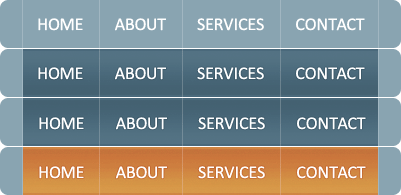
There are a couple of benefits to using this technique. First, there is no reason to worry about image preloading, since all of the states are loaded at the same time. When you mouseover a button for the first time, there will be no flicker or pause before the hover state is shown.
Second, and perhaps more importantly, only one image is downloaded by the browser instead of as many as 4 for each button. Had we sliced the above image and implemented the menu without sprites, there could have been as many as 16 images used. Each of those images would have needed a separate request to the server and hurt the performance of your site. This is such a big issue that the Yahoo developers site considers minimizing http requests the #1 thing you can do to your content to improve page load times. (Performance Factors, YSlow Firefox add-on)
What Changes with CSS Sprites2
CSS Sprites2 keeps all of the advantages of the original technique, and then adds animation. Rather than relying directly on CSS styles to immediately show the different states, instead it uses javascript to animate between the different states. Should a user not have javascript, the technique degrades gracefully.
The javascript adds animation to the technique by placing an invisible over the original link, setting its background-position to show the appropriate state, and transitioning it in and out on the appropriate mouse events.
Now that the technique has been covered, I am going to go over the quick changes I made to the original article and then walk through the creation of the plugin.
Change to the markup
A quick concern I had with the implementation was how an active list item was indicated. Rather than giving the item itself a class, the parent unordered list is given an additional class.
Original Markup
If this seems hacky, it's because it is. Essentially it avoids an IE6 issue with multiple classes on a single element. There is not a good way around this problem while maintaining semantically clean markup. My solution was to avoid the issue by using ids instead of classes to identify the individual nav items. This has obvious drawbacks, but the IE6 Deathmarch has begun and I consider this my small contribution to the movement.
New Markup
Change to the CSS
Since I made a change to the markup, I also needed to make a change to the css. Below is the CSS for a single nav item using the original technique:
.nav .home a:link, .nav .home a:visited {
	left: 23px;
	width: 76px;
}
.nav .home a:hover, .nav .home a:focus {
	background: url(blue-nav.gif) no-repeat -23px -49px;
}
.nav .home a:active {
	background: url(blue-nav.gif) no-repeat -23px -98px;
}
.current-home .home a:link, .current-home .home a:visited {
	background: url(blue-nav.gif) no-repeat -23px -147px;
	cursor: default;
}
.nav-home, .nav-home-click {
	position: absolute;
	top: 0;
	left: 23px;
	width: 76px;
	height: 48px;
	background: url(blue-nav.gif) no-repeat -23px -49px;
}
.nav-home-click {
	background: url(blue-nav.gif) no-repeat -23px -98px;
}
Looking over this css, the purpose of most of it is obvious. It covers the LVHA states and treats the :focus state the same as the :hover state. Since the information about which state is selected is in the parent
- It pollutes the namespace with another function.
- All of the parameters are required, though they don't need to be.
- Passing in a selector for this purpose doesn't seem very "jQuery"
- The options for animation are unnecessarily limited
- allowClick - Allows click events to be disabled by setting this to false.
- show - A hash of animation options to be used when the hover is enabled.
- hide - A hash of animation options to be used when the hover is disabled.
- activeClass - The class the plugin should use to determine which nav items are active and therefore shouldn't have mouse events attached.
- clickClass - The class that should be added to the placeholder div when a nav item is clicked.
By pulling declarations upwards where possible and switching to ids, the following is the CSS for the same nav item with the new markup:
.spritesnav #snhome a:link,
.spritesnav #snhome a:visited,
.spritesnav #snhome div{
	left: 23px;
	width: 76px;
}
.spritesnav #snhome a:hover,
.spritesnav #snhome a:focus,
.spritesnav #snhome div{
	background: url(blue-nav.gif) no-repeat -23px -49px;
}
.spritesnav #snhome a:active,
.spritesnav #snhome div.click {
	background: url(blue-nav.gif) no-repeat -23px -98px;
}
.spritesnav #snhome.active a:link,
.spritesnav #snhome.active a:visited {
	background: url(blue-nav.gif) no-repeat -23px -147px;
	cursor: default;
}
Changes to the Javascript
The javascript code in the original article is well written and clean, but I believe it takes the wrong approach. Rather than use jQuery's defined plugin architecture, it is just a simple function call with a number of parameters:
$(document).ready(function(){
    generateSprites(".spritesnav", "current-", true, 150, "slide");
});
While this solution gets the job done, it has a couple of problems:
The obvious solution to these problems is to take the code that Dave wrote and turn it into a proper jQuery plugin. Once we are done with this, we will be able create the same sprites enabled menu using the following code:
$(document).ready(function(){
	$('.spritesnav').sprites();
}
By following jQuery's plugin authoring guidelines, I am making all of the parameters optional by supplying sensible defaults. When implementing a plugin, this is done by using the jQuery.extend() function. Additionally, I am following their animation guidelines which allows for any type of animation to be used that jQuery or its extensions support. Below is the plugin declaration and the jQuery.extend() call I use to set up defaults for all of my parameters:
jQuery.fn.sprites = function(settings) {
	settings = jQuery.extend({
		allowClick: true,
		show: {opacity: 'show'},
		hide: {opacity: 'hide'},
		activeClass: 'active',
		clickClass: 'click'
	}, settings);
The optional parameters above do the following:
With this set up I am ready to execute the logic of the plugin. I followed Dave's work pretty closely. The only place I parted was that I used chaining and traversal where I could rather than initiating a new selection. This probably makes the plugin (negligibly) faster while also making it a little bit easier to follow. I also kept everything in one function, eliminating a few more selections. Below is the rest of the code for my plugin with my comments stripped.
jQuery(this).children().each(function(){
  if(!jQuery(this).hasClass(settings.active)){

    jQuery(this).children('a').css({background: "none"});
    jQuery(this).hover(function() {
      jQuery('')
	  .prependTo(this).animate(settings.show);
    },function(){
      jQuery(this).children('div').animate(settings.hide, function(){
        jQuery(this).children('div').remove();
      });
    });

    if(settings.allowClick){
      jQuery(this).children('a').mousedown(function(){
        jQuery(this).prev().addClass('click');
      }).mouseup(function(){
        jQuery(this).prev().removeClass('click');
      });
    }

  }
});
As you can see it is extremely compact and nearly everything has become an option. If you know just a little bit of jQuery, you might be wondering why the famous '$' isn't being used in the code above. When writing a plugin, it is important to be mindful of potential collisions with other libraries. For that reason it is recommended that you use 'jQuery' instead. If you really want to use the '$' or other alias in your plugin, you can wrap your plugin in an anonymous function:
(function($) {
  // plugin code here, use $ as much as you like
})(jQuery);
If you like this plugin and want to add it to your site, below is an example you check out and a zip file containing all of the files for this project.
Related Posts


Comments
Timeshare
Hi Joel. Its really a nice tutorial for me to read the troubleshooting and using of J-query. I am studying Java programming to make myself a good programmer. Your tutorial is very helpful for me. If i face any problematic in my study, hope i will get my resolutions here. Thanks
trimedic37
I am totally struggling with this and am irritated....I am still not where I need to be as far as CSS is concerned...
health002
Thank you for this! It works great. But I'm having an issue with IE 7.0 as well...any ideas? Also, I'm sure it is right in front of me, but what setting do you change to make it fade instead of slide? I've tried a number of things with no luck.
wow gold guide
Thanks Joel. This plugin rocks. I've used it on several sites and thought I should contribute what our dev team have discovered so far. We had IE7 issues as well. The problem seems to come from IE7's crap treatment of 24-bit pngs. The effects worked well as long as we used jpgs or gifs as the css bkgr images, but transparency and opacity mess w/ IE7. You can try to use IE filters and a separate stylesheet, reducing the opacity down to 99%. Catch is, MSIE filters don't allow for positioning the background image, which most sprites depend on. So try to use gifs and jpgs whenever possible.
Andrew
One more thing, I believe this article has been corrupted since originally uploaded as the copy doesn't flow, some images are missing, and perhaps more than I can glean at a first read.
Andrew
Thanks for this interesting update to the original Sprites article. I know it is now a year old adn wonder if you have thought about revisiting it?
At a first glance, I see you didn't include anything to stop the animations from queueing, or did you? I address this by simply adding .stop() before any of the .animation calls.
Additionally, does this degrade as well as the original method? I will test it this weekend and provide more feedback if I find out differently.
great work,
Andrew
IE:
.prependTo(this).animate(settings.show);
becomes
.prependTo(this).stop().animate(settings.show);
Michael Ware
Time to eat some crow. Just got a png to work by playing with z-indexes. Difficult to explain, but IE7 doesn't always do well with showing z-indexes above the z-index level of their parent element. I have a very nested navigation system. once I brought the main header div out to a z-index: 99, the hover states could show through.
so the image file type for the sprite shouldn't matter!
Joel Sutherland NMC team member
Michael,
Thanks for the comments and for the heads up. I have not used this with 24-bit pngs yet so I would never have guessed that was the issue!
Michael Ware
Thanks Joel. This plugin rocks. I've used it on several sites and thought I should contribute what our dev team have discovered so far. We had IE7 issues as well. The problem seems to come from IE7's crap treatment of 24-bit pngs. The effects worked well as long as we used jpgs or gifs as the css bkgr images, but transparency and opacity mess w/ IE7. You can try to use IE filters and a separate stylesheet, reducing the opacity down to 99%. Catch is, MSIE filters don't allow for positioning the background image, which most sprites depend on. So try to use gifs and jpgs whenever possible.
Alex NMC team member
Another good use of CSS sprites is to combine all application icons into a single image file and use background-position to show the required image.
Hsa
Thanks for sharing this and the files. I've got a new web client that I may just try utilizing this for. You're a great help!
Freelance writing
Does this work well in Opera and also in Camino? I've had issues with those (mac based) browsers with some CSS and also JS in the past.
kimil
hi!
my question is:
How to control the speed of the effect?
Thanks for your article.
Joel Sutherland
In the javascript examples on this page I show how to use the "show" and "hide" optional settings to control which animation is used. If you want it to fade, use 'opacity: show'.
Ted
Yes, as David said, I too would like to know :)
david
hey joel, thank you so much for writing this up. you saved me a lot of time.
one question: how do i get the menu images to fade in like the example at the top of the page?
the zipped example i downloaded here and implemented on my own site makes the menu images slide in from the top right instead of fading in.
thank you!
Erick
(Please enable a Notify me when a new comment is posted here" type of feature on your comments system so we can track it. For now, if you reply, please also email me.)
Here are the problems with this script:
(1) In Firefox in Mac (which is quite a prevalent environment now) it flickers forever in a vertical sprite. The little gimmick of adding the DIV tag is the culprit I think.
(2) Doesn\342\200\231t work consistently in IE7. Sometimes the animation doesn\342\200\231t happen at all, and other times happens jerkily.
Any thoughts would be welcome. Have you tried this with a vertical menu? Doesn't work. "
Erick
Sorry, this AListApart kind of trick does not work with vertical sprites--each menu item is not to the right of the previous one, but below the previous one. My CSS works fine (I change the top:" instead of the "left:") but it doesn't work with this technique. Any thoughts? "
Kenneth Henderson
I think this is awesome... but I can't seem to get the "current" state to changed to the button that is clicked.
Joel
Lisa, the demo tests fine in IE7, what changes have you made?\r\n\r\n
Lisa
Thank you for this! It works great. But I'm having an issue with IE 7.0 as well...any ideas? Also, I'm sure it is right in front of me, but what setting do you change to make it fade instead of slide? I've tried a number of things with no luck.
Julie
Thank you so much!! I'm a newbie to jQuery and this helps me tremendously both in getting my work done and in starting to understand how to use it.
Joel
It's likely the issue is in your css -- IE can be really picky with selectors.
Adam
Works great in ff but for some reason it's not doing the effect in ie7 for me...any ideas?
Adam
Wow...You are incredible. Thank you so much! Respect to Dave's original tutorial, but this one blows it away...Brilliant
Leave a comment